
Meta Desktop (Beta) – Installation Guide
Follow these steps to safely download and install Meta Desktop on your Windows device.
⬇️ 1. Download the App
Click the “Download Meta Desktop” button on this page.
Your browser will download:
meta-desktop-beta.zip
🔐 Security Note:
This file is distributed through our official beta channel. We never bundle third-party software or hidden installers.
This file is distributed through our official beta channel. We never bundle third-party software or hidden installers.
📁 2. Locate the File
Open your Downloads folder and find:
meta-desktop-beta.zip
🗜️ 3. Extract (Unzip)
Right-click the file → “Extract All…” → click “Extract”.
A new folder will appear with the app inside.
▶️ 4. Run the Application
Open the folder and double-click:
MetaDesktop.exe
⚠️ 5. SmartScreen Warning (Expected)
Since this is a beta app with limited downloads, Windows may show:
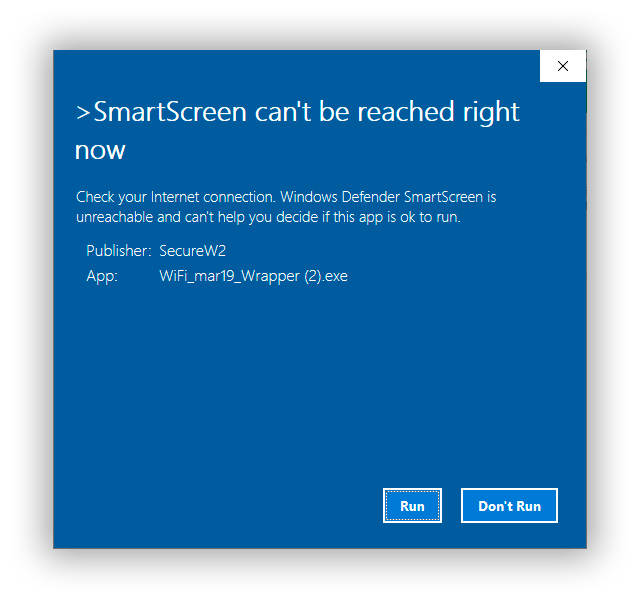
“Windows protected your PC”
This is normal for new applications.
To continue:
- Click “More info”
- Click “Run anyway”
🔐 Why this happens:
Windows SmartScreen flags apps that are new or not widely downloaded yet. This does not indicate a security issue—it simply means the app is still building reputation.
Windows SmartScreen flags apps that are new or not widely downloaded yet. This does not indicate a security issue—it simply means the app is still building reputation.
🛡️ Your safety matters:
- Distributed only through our official source
- No access to our storage of private keys
- You remain fully in control of your wallet
🛡️ 6. Optional Safety Check
- Confirm file name:
Meta-Desktop.exe - Download only from the official website
- Scan the file with antivirus software
🚀 7. Launch & Get Started
- Create or import your wallet
- Explore features and test functionality
- Submit feedback to claim your reward 🎁
❓ Need Help?
If you encounter any issues during installation, contact our support team.